Lesson Plans
REB lesson plan generatorDraft REB-format lesson plans from pre-primary to Senior 6 in English, French and Kinyarwanda, with observation form and record of work. Print, save as PDF or download as Word. Works offline.
Open them in your browser now. Install them on Windows or Android when you are ready. Use one account to keep your work on all your devices.
Each app has a live demo you can try with no sign up.
Draft REB-format lesson plans from pre-primary to Senior 6 in English, French and Kinyarwanda, with observation form and record of work. Print, save as PDF or download as Word. Works offline.

Build a school timetable with the REB 2026-27 weekly periods for every level, then print it for classes, teachers and rooms. Works offline.
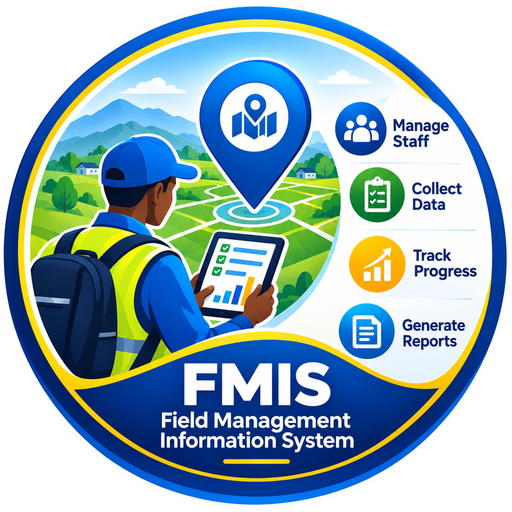
Collect data with smart forms (skip logic, repeat groups, GPS and photos), assign tasks, check in, review and report. For any institution, team or individual.
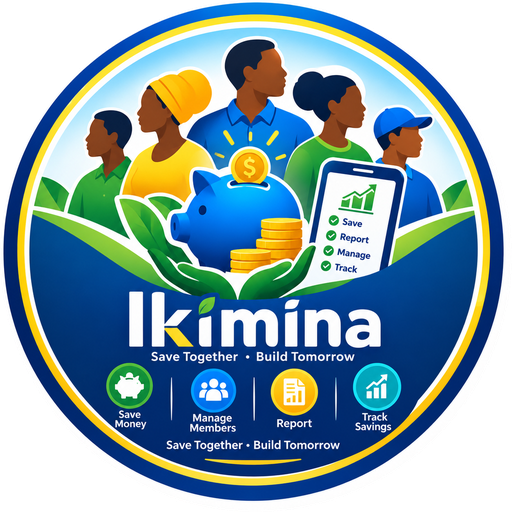
Run an ikimina, VSLA or tontine: contributions, loans, rotation, reports and roles for the President, Accountant and members.
Prepare for the Rwanda provisional driving licence theory test in Kinyarwanda, English or French: questions, signs and mock exams.

The full Primary 1 to 6 curriculum, exams, lesson plans, timetables and reports for schools, with Smart School Cloud for online access.
Installed apps work with no internet. The web version needs a connection to open.
Turn on cloud sync in an app and sign in with your phone number and a PIN. Your work is saved on the device first, so it always works offline. When the device is online it sends what changed and receives what other devices changed.
No signal in the field or at the meeting? Keep working. Everything catches up when you are back online.
Make a backup any time. The person who set up a group or workspace can remove anyone's access at once.
The server decides who can read and change what, not just the app on the screen.
| Web | Windows | Android | |
|---|---|---|---|
| Needs installing | No | Yes | Yes |
| Works with no internet | After the page has loaded | Yes | Yes |
| Cloud sync between devices | Yes | Yes | Yes |
| GPS and camera (FMIS) | In browsers that allow it | Photos from files | Yes |
| Printing and PDF | Yes | Yes | Yes |
No. Every app works on its own device without one. An account is only needed if you want to share or continue your work on another device.
You can try every app for free. Amategeko y'Umuhanda has a free sample and a full version unlocked with a code. Smart School App is licensed to schools. Ask us about FMIS and Ikimina for your organisation.
The web apps keep data in the browser, so clearing site data removes it unless cloud sync or a backup is on. Use the backup button, or turn on cloud sync.
Current versions of Chrome, Edge, Firefox and Safari, on phones and computers.
Yes. We can set up your workspace, train your team and support you. Send an enquiry.
We will point you to the right app and help you get started.